Scene editor
The editing surface of Doppio: a scene tree, a rendered viewport, an inspector built from component cards, and a command history that every editing action records.
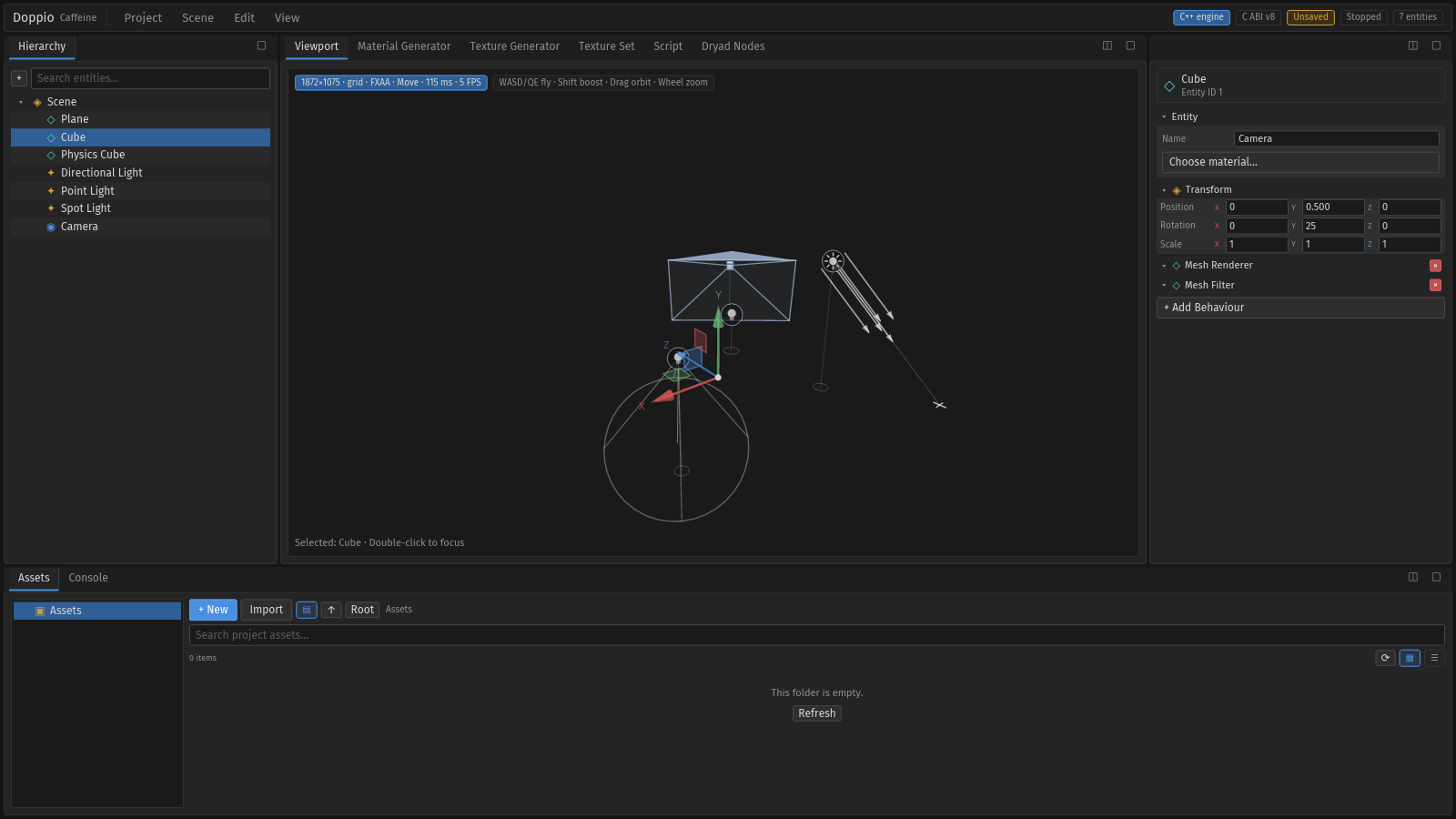
What the editor edits#
The editor reads and writes the same ECS scene data the runtime uses. A scene is a
.caf file, and the project stores it under scenes/. The editor never owns a
parallel scene format.
| Surface | What you can do |
|---|---|
| Hierarchy | Search, select, add and delete entities; expand parent groups; drag a row onto another to reparent it. |
| Viewport | Orbit, pan and fly the camera; click to select; drag the move/rotate/scale gizmo; double-click to focus. |
| Inspector | Rename the entity, edit the combined transform, expand component cards, remove components and add behaviours. |
| Assets | Browse the project, create/import assets, and pack a .cap. |
| Console | Filtered Errors, Log, Actions, Engine and UI entries. |
Hierarchy#
- Rows are built from
Scene::Parentlinks, not a UI-only tree. Reordering or reparenting writes the ECS parent component, and the viewport resolves world transforms through the parent chain. - The search field filters by entity name. Parent groups compose position, rotation and scale into their children.
- Every row and control has a stable id (
hierarchy.list.entity_row.<n>,hierarchy.search,hierarchy.add), so flows and agents can target it. - The right-click menu adds, deletes and focuses an entity.
Inspector#
The inspector is composed from reusable cards:
| Card | Contents |
|---|---|
| Entity | Name and identity, with a material chooser. |
| Transform | Position, rotation and scale on one row set; values are bounded fields with drag and keyboard entry. |
| Component cards | One collapsible card per component, with type-specific fields and a remove button. |
| Add Behaviour | Opens the behaviour picker for components the engine exposes. |
Colour fields use the colour picker, bounded numbers use sliders and numeric fields,
and references use asset pickers with search. All edits publish a Message; none of
the widgets call the engine directly.
Gizmos and scene markers#
The viewport overlays two components:
- Transform gizmo — move (
1), rotate (2) and scale (3) handles for the selected entity, with plane handles for move and a centre handle for uniform scale. Every drag is one undo step. - Scene markers — icons and frusta for lights, cameras, colliders and empties, which have no mesh to select. Markers sit under the gizmo in hit order: gizmo handle, then marker, then scene picking.
See Gizmos and markers for the full interaction model and screenshots.
Undo, redo and play mode#
- Every editing command calls
App::commit, recording one undo step.Ctrl+ZandCtrl+Shift+Zwalk the history. - Scene → Play (
Ctrl+Enter) ticks the engine. The status bar shows a Playing chip; play-mode changes are kept out of editor-only paths. - Scene → Save Scene (
Ctrl+S) writes the.cafscene and updates the Saved badge.
Prefab palette#
Scene → Create Entity… (Ctrl+Shift+N) opens a built-in palette: mesh, point,
directional and spot lights, camera, physics body, terrain, water, empty group and
Duplicate Selection. The same palette is available from the Hierarchy +.
Choosing an entry adds a configured entity; no plugin is required.
Empty and fixture states#
A new scene has no entity. With no engine session (for example a headless fixture),
the viewport shows Waiting for the engine viewport… while the rest of the editor
remains fully interactive. The scene3d fixture starts an engine-backed scene with
lights, a camera and meshes for visual tests.
Related pages#
- Scene viewport — rendering, camera and readback.
- UI gallery — visual tour of the panes.
- Headless testing — script the editor without a window.