Viewport HUD and controls
The Rust viewport has a compact HUD instead of an icon toolbar. View mode, gizmo mode, grid and markers are driven by the View menu and shortcuts; the HUD reports exactly what the renderer is doing.
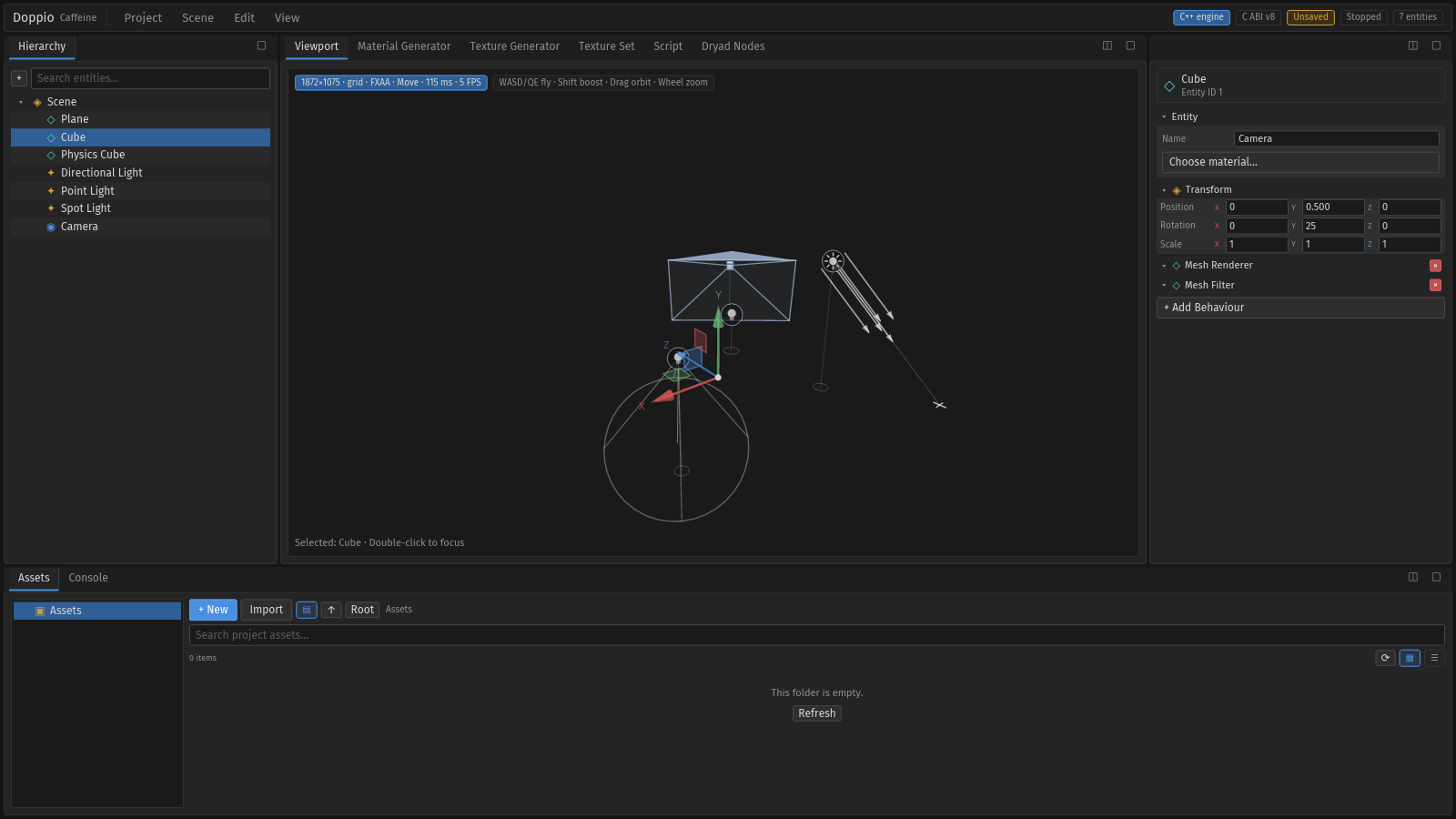
HUD#
The status chip is assembled in windows/main.rs and rendered by
viewport_surface:
1872×1075 · grid · FXAA · Move · 18 ms · 57 FPS
| Field | Meaning |
|---|---|
width×height |
Internal render size in physical pixels, after render_scale. |
grid / no grid |
Reference grid state. |
no AA / FXAA / TAA |
Active anti-aliasing mode. |
Move / Rotate / Scale |
Gizmo mode. |
ms |
Latency of the last completed readback. |
FPS |
Completed viewport frames in the last second. |
The bottom hint shows Selected: <entity> · Double-click to focus, or the focus hint
when nothing is selected.
View menu#
| Item | Shortcut | Effect |
|---|---|---|
| Focus Selection | Ctrl+F or F | Moves the orbit focus to the selected entity. |
| Reset Camera | Ctrl+0 | Restores the default orbit distance and angles. |
| Render Now | Ctrl+R | Requests an immediate viewport frame. |
| Show / Hide Scene Markers | — | Toggles light, camera, collider and empty markers. |
| Show / Hide Grid | G | Toggles the reference grid. |
| Move Tool | 1 | Translate gizmo. |
| Rotate Tool | 2 | Rotate gizmo. |
| Scale Tool | 3 | Scale gizmo. |
| Terrain / Water / Nature / Texture Generator | — | Opens the matching generator tab. |
| Default Layout | Ctrl+1 | Restores the standard pane arrangement. |
| Viewport Layout | Ctrl+2 | Maximises the viewport area. |
Camera gestures#
| Gesture | Action |
|---|---|
| Drag | Orbit |
| Right or middle drag | Pan |
| Wheel | Zoom |
W A S D / Q E |
Fly / down-up |
Shift |
Boost |
| Double-click | Focus the entity under the cursor |
Anti-aliasing and render scale#
Anti-aliasing and render scale are part of CaffeineViewportSettings in the C ABI and
are clamped by the engine:
anti_aliasing:Off,FXAAorTAA.render_scale:0.5to2.0; values above 1 supersample, below 1 trade sharpness for speed.
The render size is the pane's logical size multiplied by the scale and the display scale factor. Change the pane size to change the render resolution; the HUD updates on the next completed frame.
Historical note. The archived C++ editor had a floating icon-only toolbar with 2D/3D/Iso and perspective/orthographic buttons. It is not part of the Rust viewport; use the View menu and shortcuts above.
Related pages#
- Scene viewport — readback pipeline, picking and camera maths.
- Gizmos and markers
- Performance